Getting started
Set up In-house logistics
Enable In-house logistics, create the first company warehouse and prepare the flow for deliveries with your own vehicles.
Before you start
In-house logistics is for a company that organizes collections or deliveries with its own vehicles. Before creating orders in this mode, you need at least one company warehouse. You can add more later.
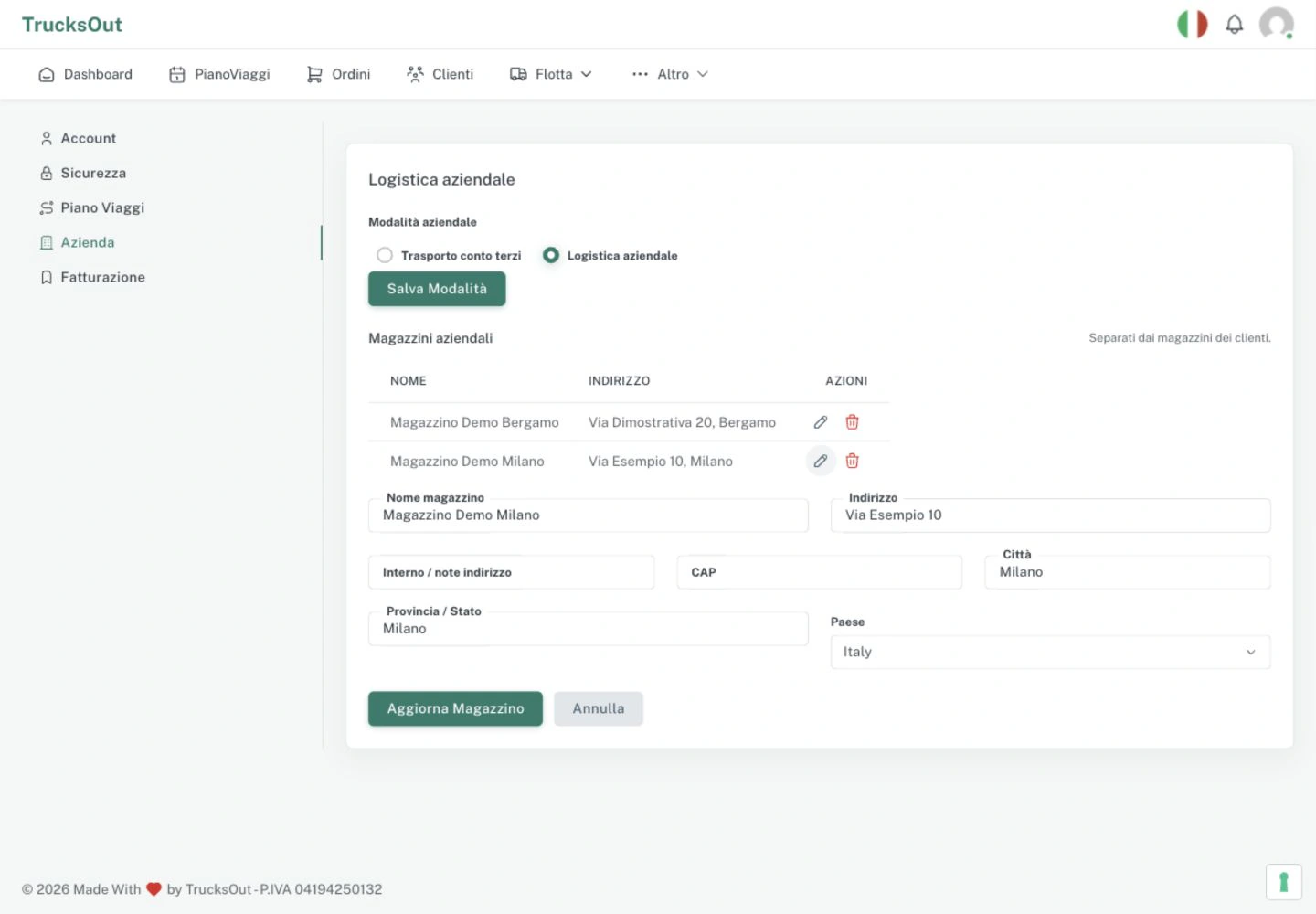
Set up the first warehouse
- Open Account → Company.
- If you choose In-house logistics at first access, complete the choice during onboarding. If you activate it later, open Account → Company and select it in the Company mode section.
- In Company warehouses, enter Warehouse name, Address, Postcode, City, Province / State and Country, which the form requires.
- Add Unit / address notes if needed.
- Select Add warehouse. When In-house logistics is selected, saving the first warehouse also attempts to save the mode: check the confirmation message.
If the warehouse was saved but the mode was not updated, use Save mode to retry without creating another identical warehouse. To distinguish the first choice from a later change, see Choose the company mode.
Manage several warehouses
To add another operating location, return to Company warehouses, complete the details and use Add warehouse. To edit an existing warehouse, update its details and select Update warehouse.
Next step
Once you have at least one company warehouse, you can create an order for the internal fleet and then place it in the daily Trip Plan.
Last reviewed: