Documents
How documents work in TrucksOut
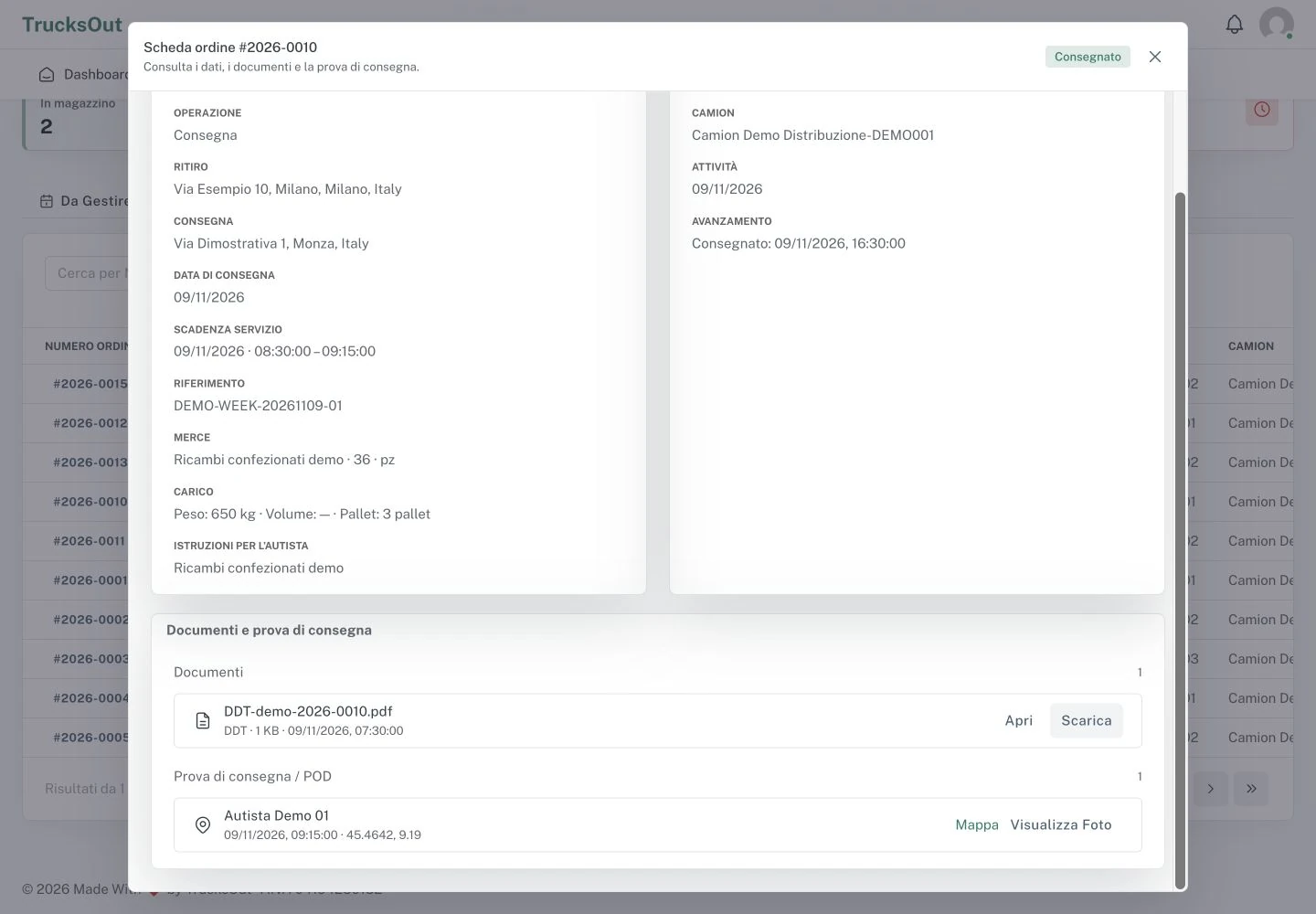
You can attach documents to orders and classify them as DDT, CMR, or Other. The basic POD is collected through the Mobile App instead.
Before you start
Open the correct order. If you need to attach a file, make sure it is readable and in a supported format; the POD is instead created through the Mobile App during delivery.
How to do it
- Open Create order or Edit order
- Add the file
- Choose the correct type
- Complete the upload
- Open the Order Details to view documents and POD
What happens next
Uploaded documents remain linked to the order. The basic POD is collected separately during delivery and appears in the Order Details.
Good to know
If something does not work
If a file does not upload, check the format, size, connection, and permissions. For POD issues, check the photos, location, and delivery completion in the Mobile App.
Last reviewed: