
Trip Plan
Daily and weekly Trip Plan
Use the daily Trip Plan to make changes to the work and the weekly view to check the week's schedule.
Which view to use
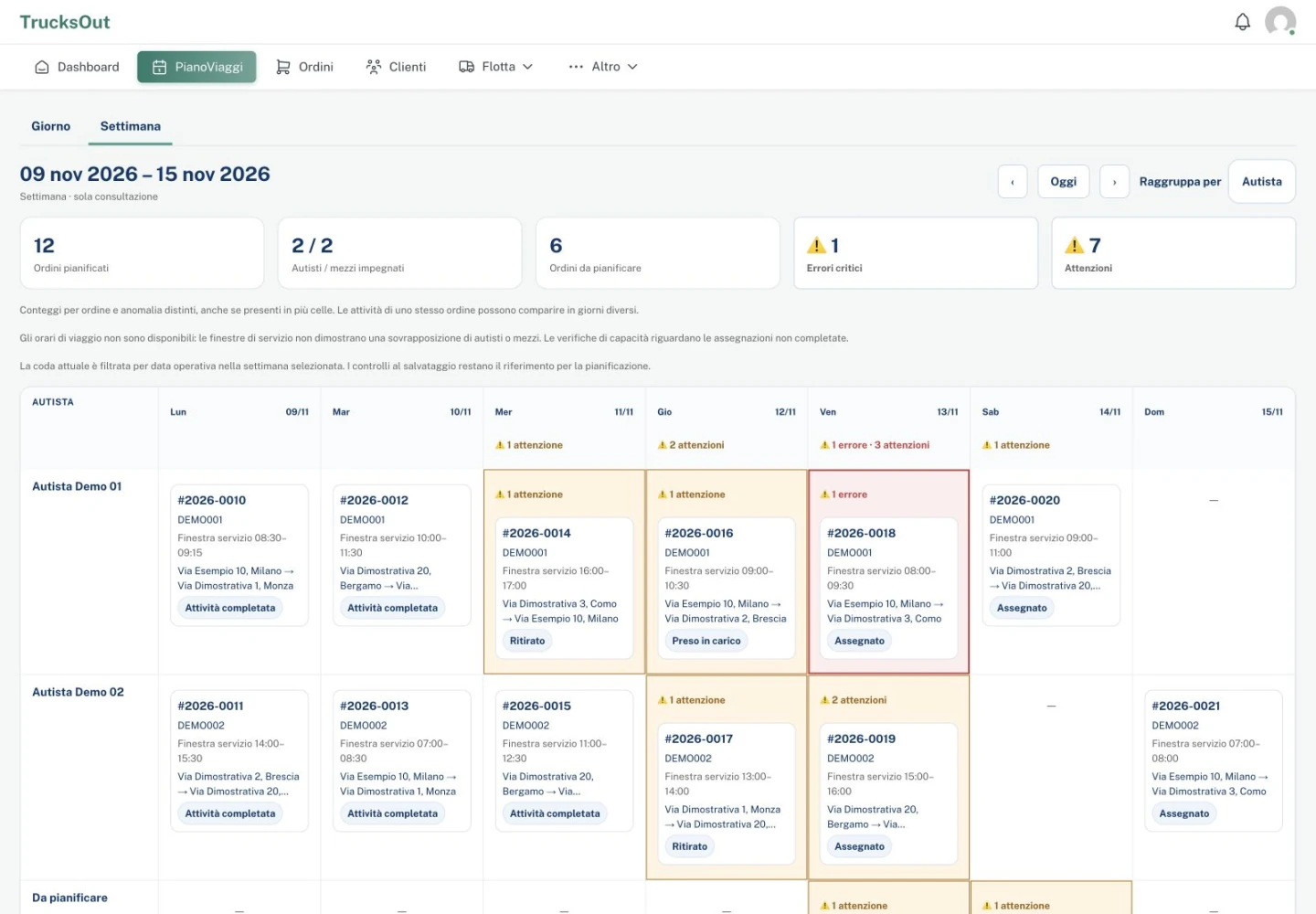
The daily Trip Plan is the operational view: here you add drivers and trucks, link orders and activities, change assignments, and save. The Week · view only view is instead used to read the schedule across seven days.
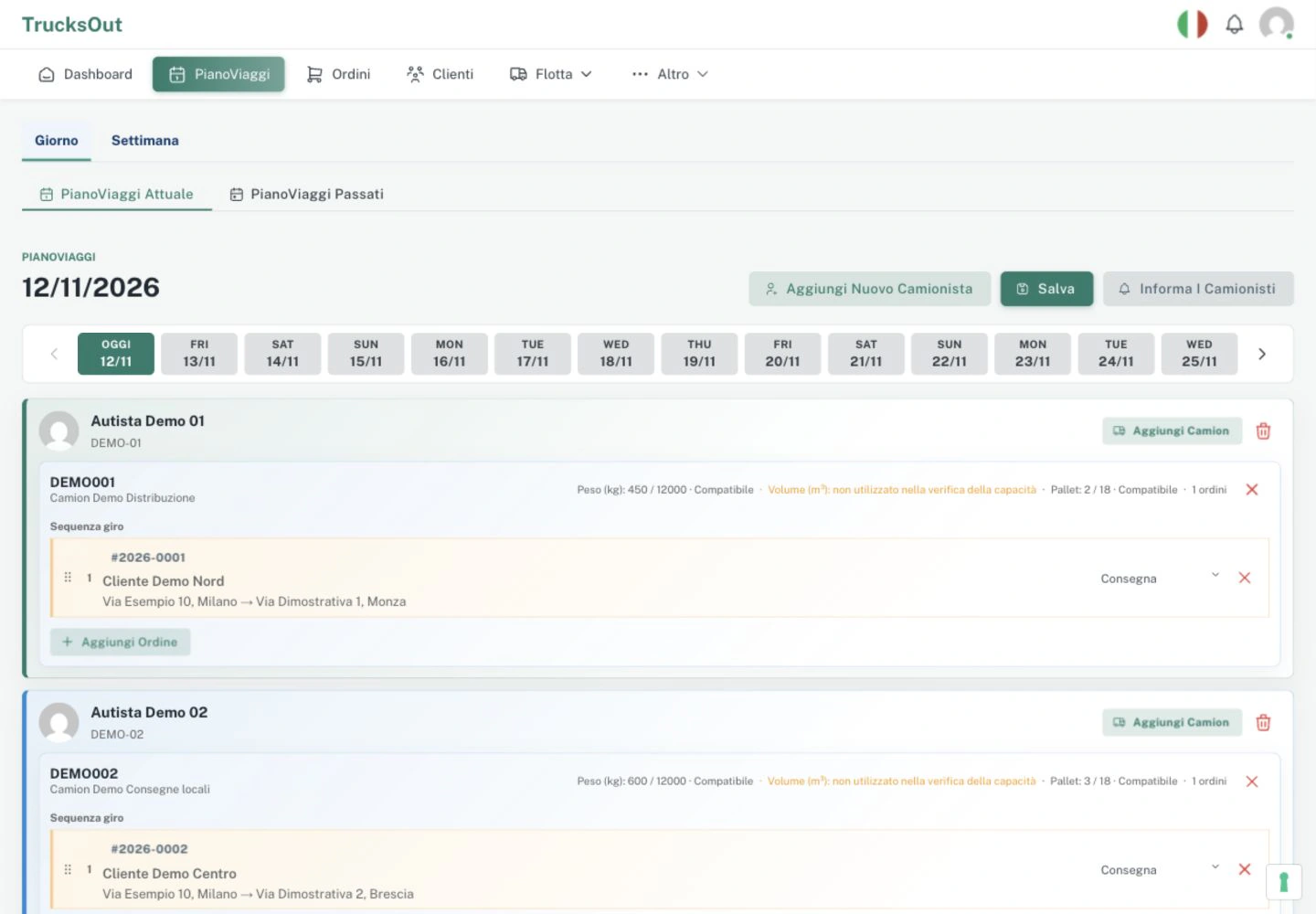
Changing daily work
- Open the Trip Plan for the correct date.
- Add or update the required driver, truck, order, and activities.
- Check the sequence before saving.
- Save the Trip Plan.
- If a driver's work changes, use Inform Drivers: saving does not automatically send a push notification.
Checking the week
Open the Week · view only view to see the seven-day grid, grouped by Driver or Truck. If you need to work on a day, select it: TrucksOut opens the related daily Trip Plan.
Planning limits
The Trip Plan helps organise work; it does not automatically promise an optimal route, an actual arrival time, or compliance with driving and rest times.
Last reviewed: