
Trip Plan
Driver Hours and checks
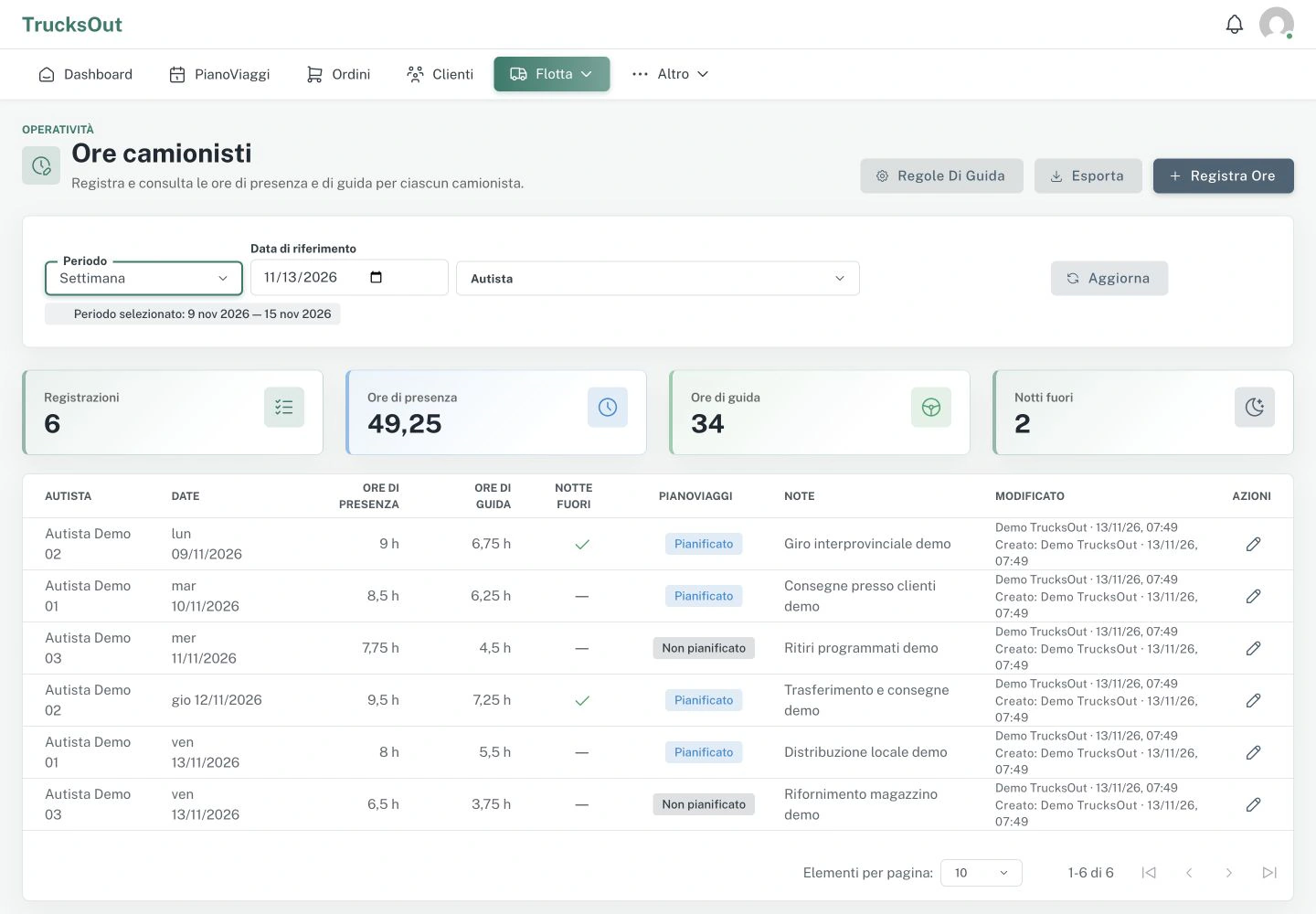
When enabled, Driver Hours shows information about entered hours and can help you assess driving availability.
Before you start
Before reading the checks, make sure you are on the correct day and that the driver's operating hours have been entered or updated according to your process.
How to do it
- Check that Driver Hours is enabled
- Enter or check the available hours
- Open Trip Plan
- Check for any warnings
- Correct the data or plan if necessary
What happens next
After correcting data or assignments, check the plan warnings again. Any communication to the driver happens separately.
Good to know
If something does not work
Check that the feature is enabled and that the hours are associated with the correct driver. If the warning is unclear, send support the date and text shown, without inferring regulatory compliance.
Last reviewed: